

FilmLune — AI Image & Video Creation Platform
Create AI Images & Videos from Text or Photos
Image Studio
Reference images(optional)
Model
GPT Image 2.51K · Standard · 5
1/4
Auto · 1:1
Make it your own
Explore tools ↗ Explore skills
Find your creative model
Open Studio ↗GPT ImageBuild an image from a detailed brief: define the subject and composition, then specify text, materials and light.Nano BananaWork with several reference images in one brief, assigning each a role: person, product, setting or style.SeedreamShape a scene through materials, lighting and spatial relationships, then choose the version and output size.MidjourneyStart with a visual direction and composition to explore illustration, concept art and atmospheric single images.Grok Imagine ImageBegin with a concise scene brief, establish subject, setting and framing, then choose an output tier.RecraftChoose an image for a finished visual or SVG for editable shapes. Recraft V4.1 and V4.1 Vector are separate outputs with separate pricing.SeedanceDesign one coherent clip: define the subject's action, camera movement and sound direction, then choose a 2.0 or 2.5 tier.Veo 3.1Plan a short shot with a clear opening and closing state; use start and end frames when you need more control over the transition.MiniMax H3Write a short clip around a person or product action: establish its rhythm, then choose camera, setting and output tier.Grok VideoStart with a clear opening frame and one continuous action for a short horizontal or vertical clip.
Start with a spark
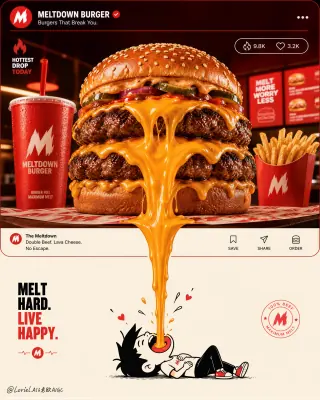
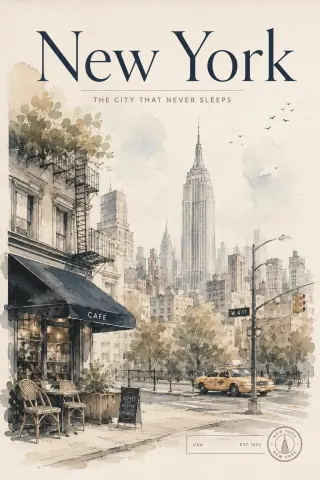
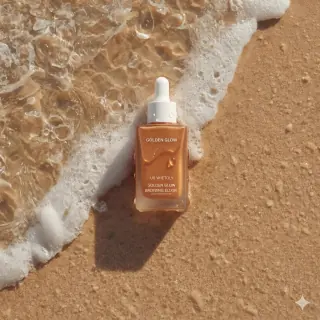
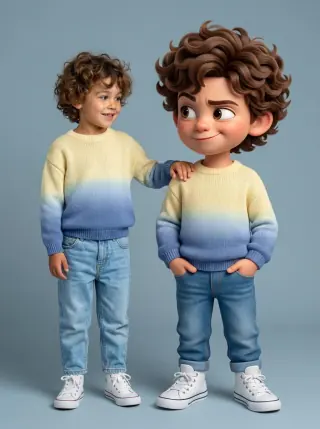
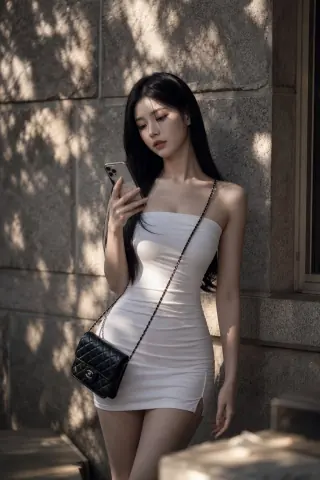
Explore real examples. Open one to see the full prompt, source and creation steps.






FilmLune
More than a blank canvas
Bring a product, a character or an idea. Choose the right workflow and keep control of the details.
01 / Images
Generate and edit images
Create an image from text or use image-to-image to change a photo. Describe what should change and what should stay; check faces, text and product details in the result.
Open Studio ↗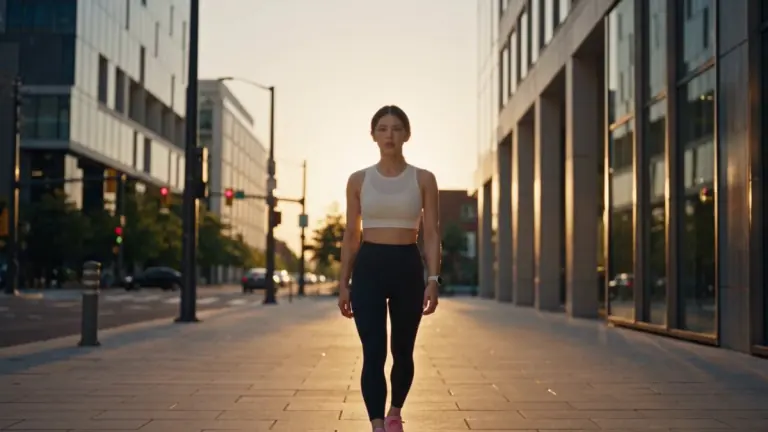
02 / Videos
Create a short AI video
Use text or a supported reference image to make one clip. Models offer different durations, resolutions and input types; an example shows a creative direction rather than a guaranteed result.
Open Studio ↗Create AI images and videos in one workspace
FilmLune combines image and video generation with real examples you can learn from. Start with your own idea, a reference image or a reusable prompt, then choose an available model and its supported settings.
Generate and edit images
Create an image from text or use image-to-image to change a photo. Describe what should change and what should stay; check faces, text and product details in the result.
Create a short AI video
Use text or a supported reference image to make one clip. Models offer different durations, resolutions and input types; an example shows a creative direction rather than a guaranteed result.
Explore the AI prompt library
Browse image and video prompts by model, style or purpose. Open a case for the full prompt, model and creation notes, then copy it or adapt it in the workspace.
Use a tool for a specific task
Resize, compress and crop files locally, or use AI for backgrounds, enhancement and other visual changes. The tools directory separates image tasks from video frames and effects.
From an AI image to one short video
Build the still image first, then guide one action and camera movement in a compatible video model.
Create or select an image
Generate your still image or choose one you have permission to use. Browse image examples to read the prompts and study the lighting and composition.
Image prompts ↗Choose a compatible video model
Use a supported image input and describe the motion. A reference image and a start frame are different options; use the one your selected model supports.
Video prompts ↗Check the settings and result
Review the duration, resolution and cost in FilmLune credits before generating one clip. Check faces, lettering and product details in the result.
Pricing ↗
How generation and credits work
Browsing examples is free. Sign in to generate, choose settings and review the credit quote before submitting. Results are private in History unless you later request publication; local tools use no credits.
Made for your creative workflow
Illustrative reviews · not real customer testimonials
I would start with a reference and refine the light and composition, rather than write every detail from scratch.
Opening the full example helps me understand the prompt before adapting it to my own product.
I can choose a supported duration and see the credits before starting a clip.
A plan for your next idea
One credit balance across available models. Choose monthly or annual billing, or buy a one-time credit pack.
Starter
Best for steady individual creation
2,100 credits / monthUnused subscription credits expire; no rollover
$19.99/ month
Billed every month
- A fresh credit allowance each subscription month
- Enabled paid models, batch generation, and video download while active
- Private creations, prompts, and history by default
- No product quantity limit for private favorites while the subscription is active
- Manage or cancel securely from your FilmLune account
Monthly rate: $0.95 / 100 creditsFinal gross price. No additional tax at checkout.
Pro
Best for recurring production across several projects
6,700 credits / monthUnused subscription credits expire; no rollover
$59.99/ month
Billed every month
- A fresh credit allowance each subscription month
- Enabled paid models, batch generation, and video download while active
- Private creations, prompts, and history by default
- No product quantity limit for private favorites while the subscription is active
- Manage or cancel securely from your FilmLune account
Monthly rate: $0.90 / 100 creditsFinal gross price. No additional tax at checkout.
Ultimate
Best for high-volume professional workflows
14,300 credits / monthUnused subscription credits expire; no rollover
$119.99/ month
Billed every month
- A fresh credit allowance each subscription month
- Enabled paid models, batch generation, and video download while active
- Private creations, prompts, and history by default
- No product quantity limit for private favorites while the subscription is active
- Manage or cancel securely from your FilmLune account
Monthly rate: $0.84 / 100 creditsFinal gross price. No additional tax at checkout.
All displayed prices are final gross prices; no tax is added at checkout. One-time credits do not expire. Subscription credits are issued monthly, expire at the start of the next subscription month, and do not roll over. Promotional credits follow separate rules.
Your questions, before you create
Which AI model should I choose?
Choose an available model for your task, then compare its supported inputs, resolution and, for video, duration. The workspace shows the options for the selected version.
Open Studio ↗Can I start with my own image?
Yes, when the selected model accepts reference images. Upload an image you can use, explain what to preserve and check the result for faces, lettering and product details.
Open Studio ↗How much does a generation cost?
The workspace displays the credit quote for your chosen model and settings before submission. Image and video models have different costs; local file tools use no generation credits.
Pricing ↗Are my creations public?
Generated results are private in History. Publishing a creation requires a separate submission and review; browsing a public example does not publish your own work.
History ↗Where is the complete prompt for a template?
Open the individual template to read its complete prompt, source and creation notes. Use the prompt or an eligible reference to continue in the workspace.
Explore prompts ↗Can I use FilmLune from an AI assistant?
The MCP page explains the supported connection and available capabilities. Follow its setup instructions and check the supported actions before connecting your client.
MCP server ↗Can I create an AI image and turn it into a video?
Yes, when your selected video model supports the image input you want to use. Create or select your image, choose a compatible video model and describe the movement. The selected option determines the available duration, resolution and inputs; review those settings and the cost in FilmLune credits before you submit the generation request.
Video prompts ↗Do I need an account?
You can browse public examples without signing in. Sign in to generate images or video clips and review the cost in FilmLune credits before generating. Promotional credits have their own eligibility rules.
Open Studio ↗